


Visual Paradigm AI: The Ultimate Guide to Intelligent Modeling for Engineers, Architects & Teams
If you’re serious about visual modeling—whether you’re a software architect, product manager, business strategist, or developer—then Visual Paradigm (VP) AI is no longer just a tool. It’s a full-fledged multi-platform AI ecosystem that turns abstract ideas into editable, traceable, and production-ready models.
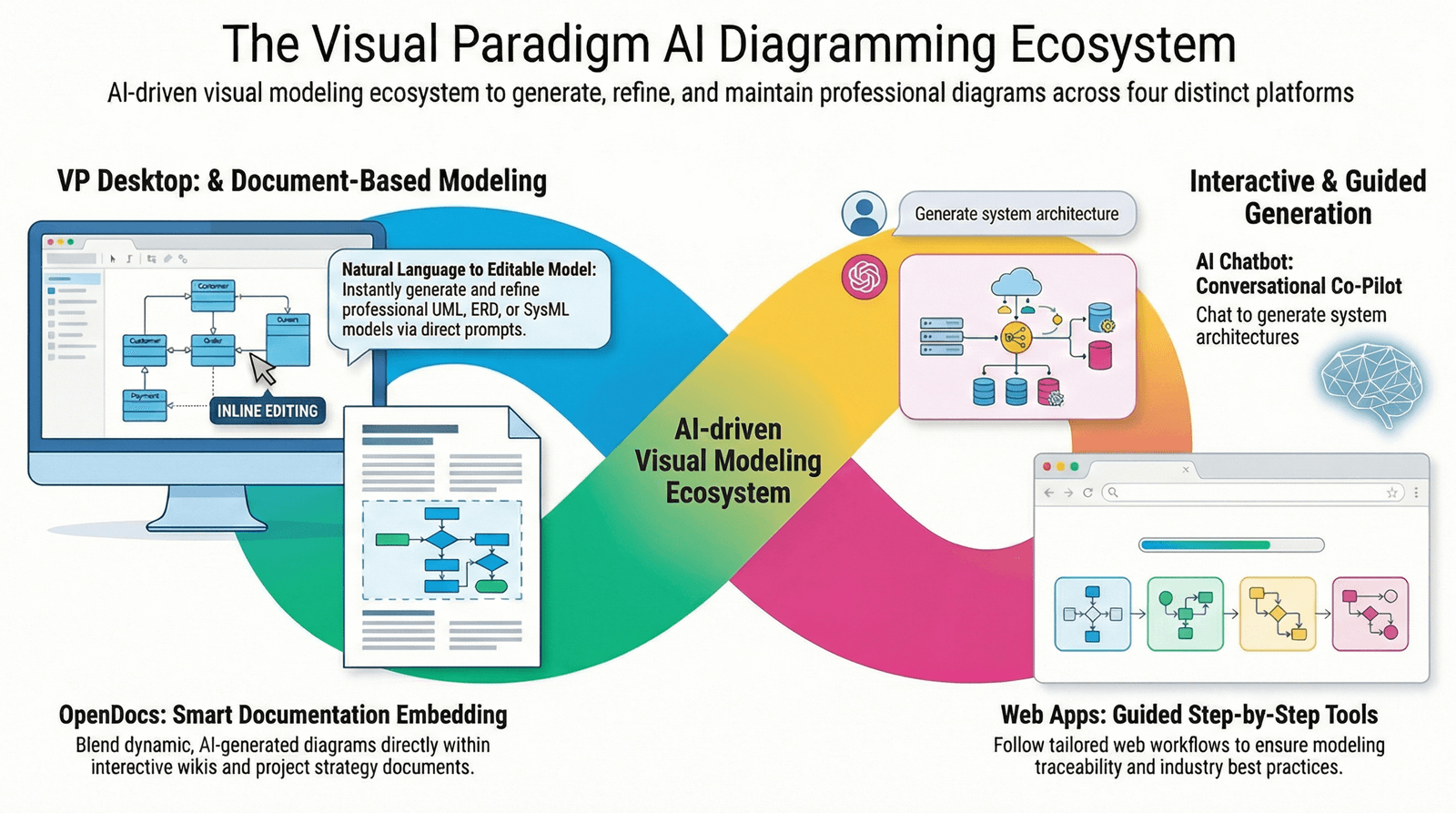
Unlike basic AI diagram generators that spit out static images (good for show, useless for editing), Visual Paradigm’s AI creates living models—diagrams that evolve, connect, and integrate with code, documentation, and team workflows.
This guide is your comprehensive, hands-on review and decision-making toolkit. We’ll walk you through the four core platforms, compare them side-by-side, and give you pro tips, workflow hacks, and real-world guidelines to get the most from VP AI—no matter your role or experience level.
🎯 Why Visual Paradigm AI Stands Out
Before diving into the tools, let’s understand what makes VP AI different:
✅ AI ≠ Just a Drawing Tool
Most AI tools generate a picture. VP AI generates a model—editable, connected, and traceable.
✅ Traceability Built-In
Change a Use Case? The related Activity or Sequence diagram updates automatically.
✅ From Idea to Code
Start with a chat, refine in a document, and generate real Java/C++/Python code in VP Desktop.
✅ Hybrid Workflow Support
You’re not locked in. Start in the Chatbot, move to OpenDocs, and finalize in VP Desktop.
✅ Designed for Teams & Enterprises
Supports version control, real-time collaboration, and integration with DevOps pipelines.
💡 Pro Tip: Think of VP AI as “Photoshop meets IntelliJ, powered by AI.” It’s not just about visuals—it’s about engineering intelligence.
🧩 The 4 Pillars of Visual Paradigm AI: A User’s Review & Guide
Let’s break down each platform with real user experience insights, when to use it, and pro tips.
🖥️ 1. VP Desktop (Visual Model AI Generator)
The Professional’s Workbench
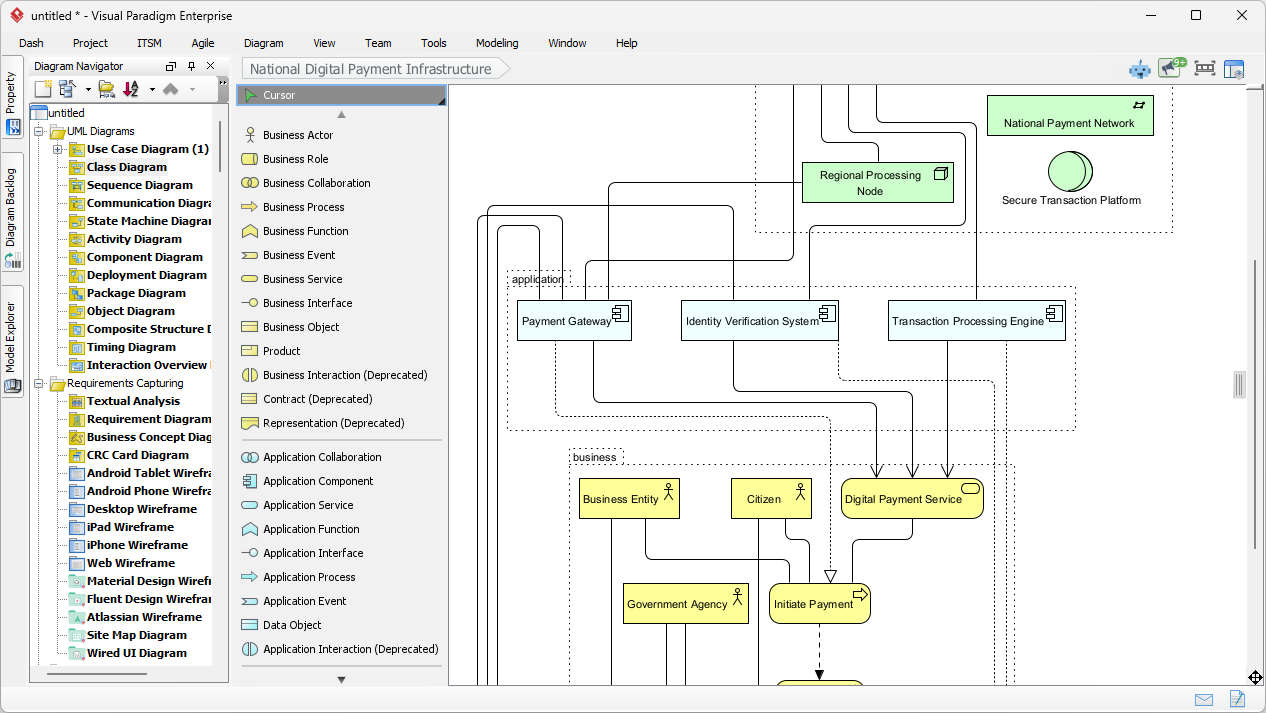
Best for: Software engineers, system architects, DevOps teams, and technical leads.
✅ User Review:
“I used to spend days building UML models. Now, with VP Desktop AI, I generate a full class diagram in 30 seconds—then refine it for code generation. It’s like having a co-developer who speaks UML.”
🛠️ Key Features:
-
Full UML, SysML, C4, ArchiMate support
-
AI-powered model generation from text
-
Direct code generation (Java, C++, Python, etc.)
-
Version control via Team Server
-
Database reverse engineering + forward engineering
🎯 When to Use It:
-
You need production-ready models.
-
You’re linking models to code, databases, or CI/CD pipelines.
-
You’re working on complex systems with 50+ interconnected diagrams.
🔧 Tips & Tricks:
-
Start with AI, then refine manually. Use AI to generate a draft, then use the built-in tools to validate logic, add constraints, and fix dependencies.
-
Use “Model Validation” to catch inconsistencies (e.g., missing associations, wrong multiplicities).
-
Export to code via right-click → Generate Code. Set templates for consistent output.
-
Integrate with Git via Team Server for collaborative, traceable model management.
💬 Pro Tip: Use VP Desktop as the “final destination”—your AI-generated models from other tools can be imported and polished here.
💬 2. AI Visual Modeling Chatbot (The Co-Pilot)
Your Agile Brainstorming Partner
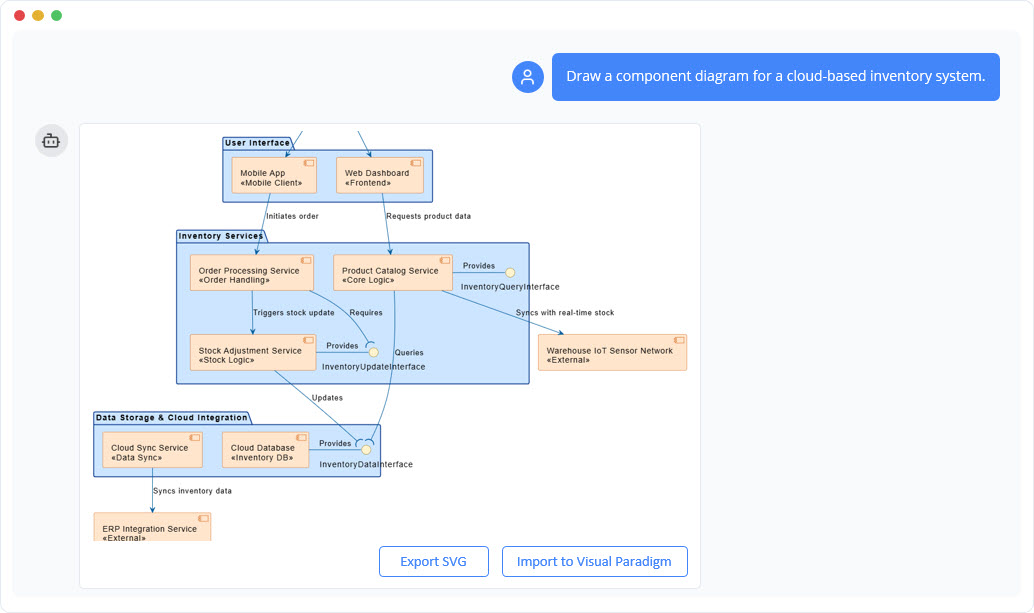
Best for: Product managers, business analysts, UX designers, and teams in discovery phase.
✅ User Review:
“I used to stare at a blank screen for hours. Now I just type: ‘Create a sequence diagram for user login with 2FA.’ Boom—done. I tweak it in 2 minutes. It’s like having a modeling partner.”
🛠️ Key Features:
-
Natural language input: Describe a system, and AI generates a diagram.
-
Interactive refinement: Ask follow-ups like “Add error handling for invalid password.”
-
Supports UML, C4, and business strategy diagrams (SWOT, PEST).
-
Export to VP Desktop or OpenDocs with one click.
🎯 When to Use It:
-
You’re in the discovery or ideation phase.
-
You need to quickly explore system behavior.
-
You want to collaborate with non-technical stakeholders.
🔧 Tips & Tricks:
-
Be specific in prompts:
❌ “Make a diagram for a shopping app.”
✅ “Create a sequence diagram showing a user adding an item to cart, applying a discount code, and checking out with PayPal.” -
Use iterative refinement:
Step 1: “Show the login flow.”
Step 2: “Add a 2FA step after password.”
Step 3: “Now show the dashboard that appears after login.” -
Save to OpenDocs or VP Desktop to continue work.
-
Use “Explain” mode to get AI-generated descriptions of your diagram—great for documentation.
💬 Pro Tip: This is your “first draft engine.” Use it to break the blank canvas syndrome—then move to a more powerful tool.
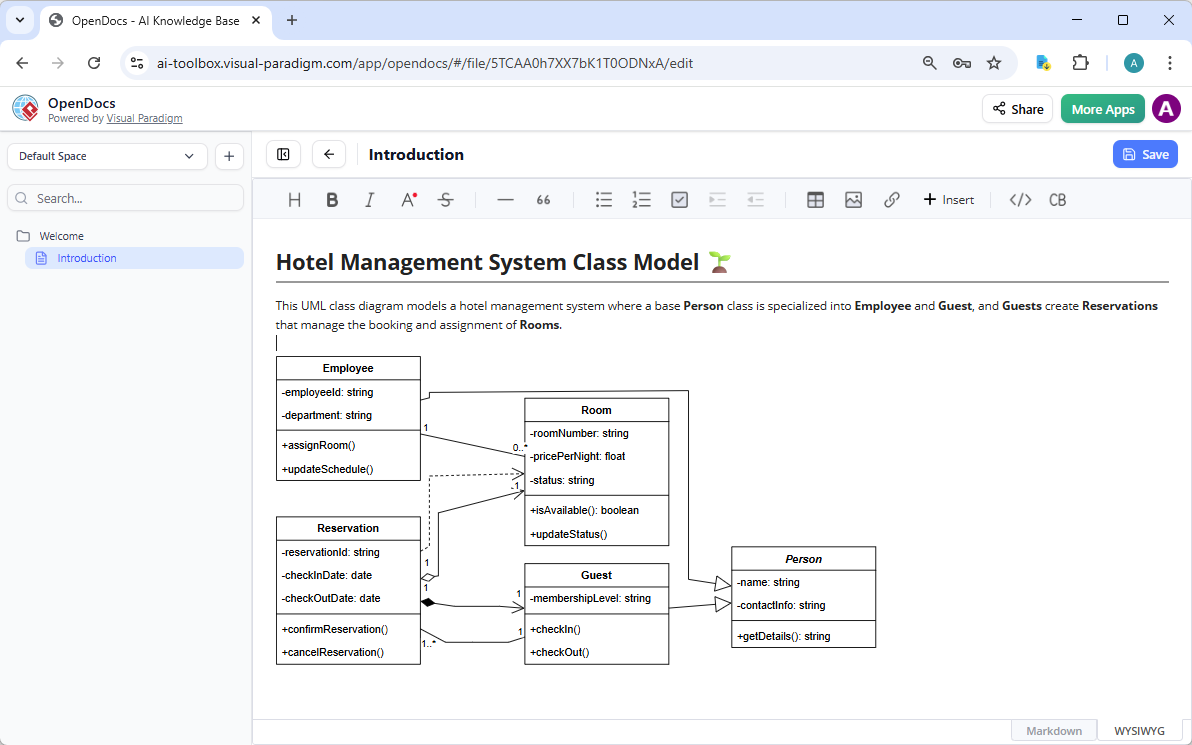
📚 3. OpenDocs (Collaborative Diagramming & Knowledge Hub)
Your Living Documentation Platform
Best for: Team wikis, onboarding guides, strategy docs, and cross-functional collaboration.
✅ User Review:
“Our onboarding docs used to be dead. Now, every flowchart is editable by anyone. We even have a live org chart that updates when roles change. It’s like Notion, but for models.”
🛠️ Key Features:
-
AI-assisted diagrams embedded directly in text.
-
Diagrams are live—edit them right in the document.
-
Real-time collaboration (like Google Docs).
-
Supports tables, and rich text.
-
Export to PDF, HTML, or share as a link.
🎯 When to Use It:
-
You’re building internal wikis, handbooks, or strategy decks.
-
You want non-technical team members to view and edit diagrams.
-
You value living documentation that evolves with your project.
🔧 Tips & Tricks:
-
Embed diagrams early. Don’t wait until the end—start with a Mind Map or Process Flow during planning.
-
Use AI to auto-generate diagrams from text: Just type a description and let AI build it.
-
Link diagrams to other sections. Use cross-references: “See the user flow in Figure 3.”
-
Assign editing rights to team leads or domain experts.
-
Use templates for consistency (e.g., SWOT, PEST, RACI).
💬 Pro Tip: Use OpenDocs as your “single source of truth”—where business requirements, diagrams, and decisions coexist.
🛠️ 4. Specialized Web Apps (AI Studios)
Guided Modeling for Methodology-Driven Teams
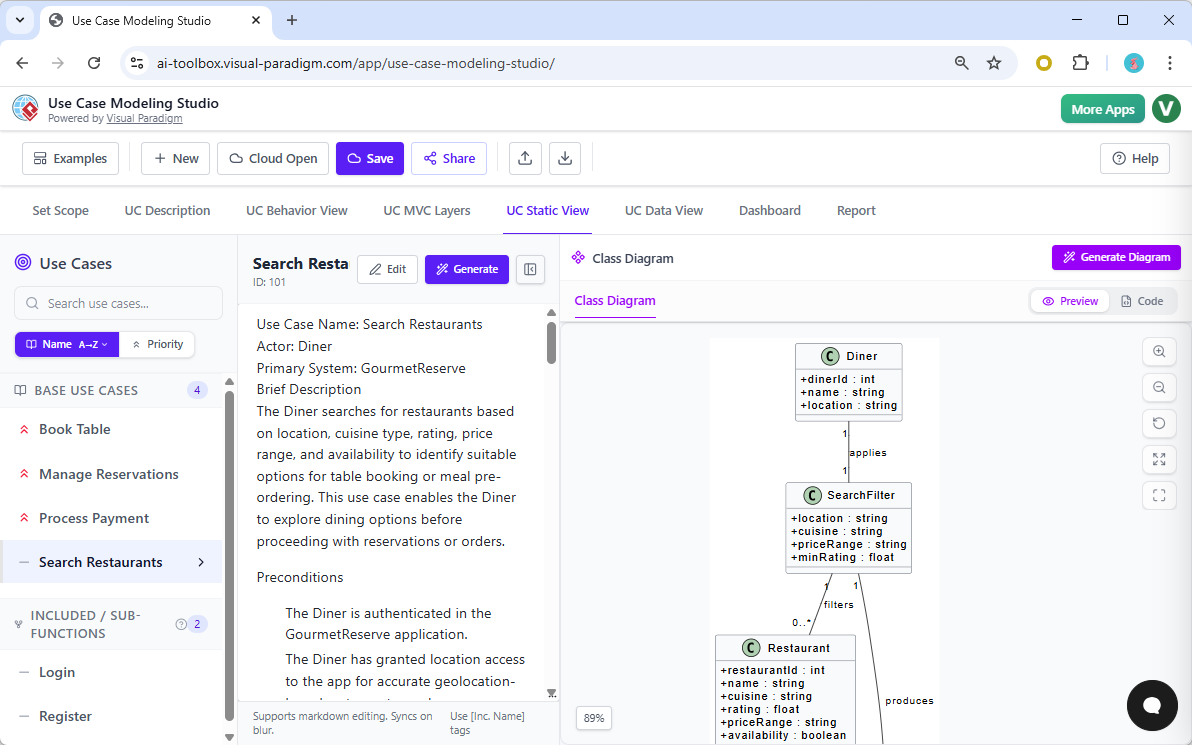
Best for: Architects, consultants, and teams following strict frameworks (C4, Use Case, ArchiMate).
✅ User Review:
“I used to struggle with C4 models. Now, the C4 PlantUML Studio walks me through context, containers, components, and code. It’s like a modeling coach.”
🛠️ Key Features:
-
Browser-based, no installation needed.
-
Step-by-step guidance for specific methodologies.
-
Enforces best practices (e.g., C4 model levels, use case depth).
-
AI assists at each step: “Now describe the primary actor and its goal.”
-
Export to OpenDocs, VP Desktop, or PDF.
🎯 When to Use It:
-
You’re building a formal architecture report or enterprise documentation.
-
You follow C4, ArchiMate, or use case modeling standards.
-
You want error-free, consistent models without guesswork.
🔧 Tips & Tricks:
-
Start with the right studio:
-
C4 Studio → For architecture reports
-
Use Case Studio → For system requirements
-
SWOT/PEST Studio → For strategy planning
-
-
Use AI to fill in gaps: If you’re unsure how to define a container, ask: “Suggest 3 possible containers for a cloud-based e-commerce platform.”
-
Export to VP Desktop to add code generation or traceability.
-
Use the “Review Mode” to validate your model against C4 standards.
💬 Pro Tip: These are your “guided onboarding” tools. Use them to standardize modeling across teams.
📊 Feature Comparison: Quick Decision Guide
| Feature | VP Desktop | AI Chatbot | OpenDocs | Web App Studios |
|---|---|---|---|---|
| Best for | Engineering & code | Ideation & prototyping | Documentation & collaboration | Methodology compliance |
| AI Quality | High (precise) | High (conversational) | High (context-aware) | High (structured) |
| Editability | Full (code, traceability) | Medium (text-based) | Medium (in-doc) | Low (guided) |
| Collaboration | Team Server | Chat-based | Real-time wiki | Individual |
| Learning Curve | Steeper | Gentle | Gentle | Moderate |
| Best for | Devs, Architects | PMs, Analysts | Teams, Wikis | Consultants, Standards Teams |
✅ Rule of Thumb:
Start with the Chatbot or Web Studio → Refine in OpenDocs → Finalize in VP Desktop
🔄 Workflow Best Practices: From Idea to Execution
Here’s how real teams use the ecosystem together:
🔄 Hybrid Workflow Example: Building a Microservices API
-
Step 1: Brainstorm (AI Chatbot)
→ Prompt: “Create a sequence diagram for a user signing up, verifying email, and logging in.”
→ Refine: “Add a step for sending a welcome email.” -
Step 2: Document (OpenDocs)
→ Copy the diagram into a “User Onboarding” page.
→ Add text: “This flow ensures security and user experience.”
→ Allow team members to edit the diagram. -
Step 3: Architect (C4 Studio)
→ Use the C4 PlantUML Studio to build a full architecture model:-
Context → Containers → Components → Code
→ Ensure the login flow is properly mapped.
-
-
Step 4: Engineer (VP Desktop)
→ Import the C4 model.
→ Generate class diagrams from components.
→ Generate Java code for the Auth service.
→ Integrate with Git and CI/CD.
✅ Result: A fully traceable, documented, and coded system—all from one idea.
🎯 Final Recommendations: Choose Your Tool by Role
| Role | Primary Tool | Secondary Tool | Why |
|---|---|---|---|
| Software Developer | VP Desktop | AI Chatbot | Code generation, model traceability |
| Product Manager | AI Chatbot | OpenDocs | Fast ideation, stakeholder alignment |
| System Architect | VP Desktop | C4 Studio | Enterprise modeling, compliance |
| Business Analyst | OpenDocs | Web App Studios | Strategy docs, SWOT/PEST |
| Team Lead / Consultant | OpenDocs | C4 Studio | Documentation, standardization |
🧠 Pro Tips & Hidden Gems
-
Use “Explain” Mode in any AI tool to generate natural language descriptions of your diagrams—perfect for reports.
-
Copy diagrams between platforms easily: OpenDocs → VP Desktop → Web App Studio.
-
Use AI to auto-generate documentation: “Write a 300-word description of this UML class diagram.”
-
Enable “AI Suggestions” in VP Desktop to get real-time improvements (e.g., “This class has no methods—consider adding a getter.”).
-
Use templates for consistency—create your own for team-wide use.
🏁 Final Verdict: Is Visual Paradigm AI Worth It?
✅ Yes—if you value:
Traceability between models and code
Collaborative, living documentation
Methodology compliance (C4, ArchiMate, etc.)
Real-world engineering integration
❌ No—if you only need static diagrams for presentations.
Visual Paradigm AI is not just an AI tool—it’s a visual modeling engine that marries AI speed with professional-grade precision.
🌐 Ready to Get Started?
👉 New to VP AI? Start Here:
-
Try the AI Chatbot for 14 days free.
-
Create a simple diagram (e.g., login flow).
-
Export it to OpenDocs and share with your team.
-
Upgrade to VP Desktop when you need code generation.
🚀 Your idea. One AI prompt. A fully traceable, engineering-ready model.
📌 Summary: The Visual Paradigm AI Advantage
| Strength | Why It Matters |
|---|---|
| AI + Engineering | Not just visuals—models that generate code |
| Traceability | Changes in one model reflect across others |
| Hybrid Workflows | Start in chat, end in code |
| Team Collaboration | Real-time editing in OpenDocs |
| Methodology Support | C4, ArchiMate, Use Case—done right |
💬 Final Thought:
In a world of AI-generated images, Visual Paradigm AI is the only tool that turns AI into engineering reality.
Stop generating pictures. Start building systems.
👉 Explore the Visual Paradigm AI ecosystem today and transform how your team designs, documents, and engineers software.
Because the future of modeling isn’t just smart—it’s intelligent, collaborative, and production-ready. 🛠️✨
- AI Chatbot Feature – Intelligent Assistance for Visual Paradigm Users: This resource introduces the AI-powered chatbot functionality designed to provide users with instant guidance, task automation, and enhanced productivity.
- Visual Paradigm Chat – AI-Powered Interactive Design Assistant: An interactive AI interface that helps users generate diagrams, write code, and solve design challenges in real time through a conversational assistant.
- AI Chatbot for Diagramming: How It Works with Visual Paradigm: This article explains how the chatbot acts as an AI-powered modeling assistant that turns natural language directly into diagrams without requiring knowledge of specific syntax.
- Introducing Visual Paradigm AI Chatbot: A Smarter Way to Create Diagrams: This update highlights how the chatbot enables natural language diagram generation, smart editing, and contextual analysis for enterprise modeling.
- Visual Paradigm AI Chatbot: Turn Your Ideas into Diagrams Instantly: A guide highlighting the assistant’s ability to visualize concepts through conversational prompts, allowing designs to grow from raw text into full models.
- How to Turn Requirements into Diagrams with an AI Chatbot: This article explores the workflow of converting project requirements into clear visual models through a continuous conversational interface.
- How AI Chatbot Can Help You Learn UML Faster: A resource detailing how the chatbot provides an interactive learning environment where users can practice UML concepts and receive instant feedback.
- Case Study: Enhancing System Modeling Efficiency with Visual Paradigm’s AI-Powered Chatbot: This case study demonstrates how the chatbot improves productivity and accuracy in system modeling by enabling conversational diagram creation.
- Visual Paradigm AI Chatbot: The World’s First Purpose-Built AI Assistant for Visual Modeling: This article highlights the launch of a groundbreaking AI assistant tailored specifically for visual modeling with intelligent guidance.
- Mastering Sequence Diagrams with Visual Paradigm: AI Chatbot Tutorial: A beginner-friendly tutorial that uses a real-world e-commerce case study to demonstrate conversational diagramming with the AI assistant.